





How to Improve Your Gaming Performance: Practical Tips
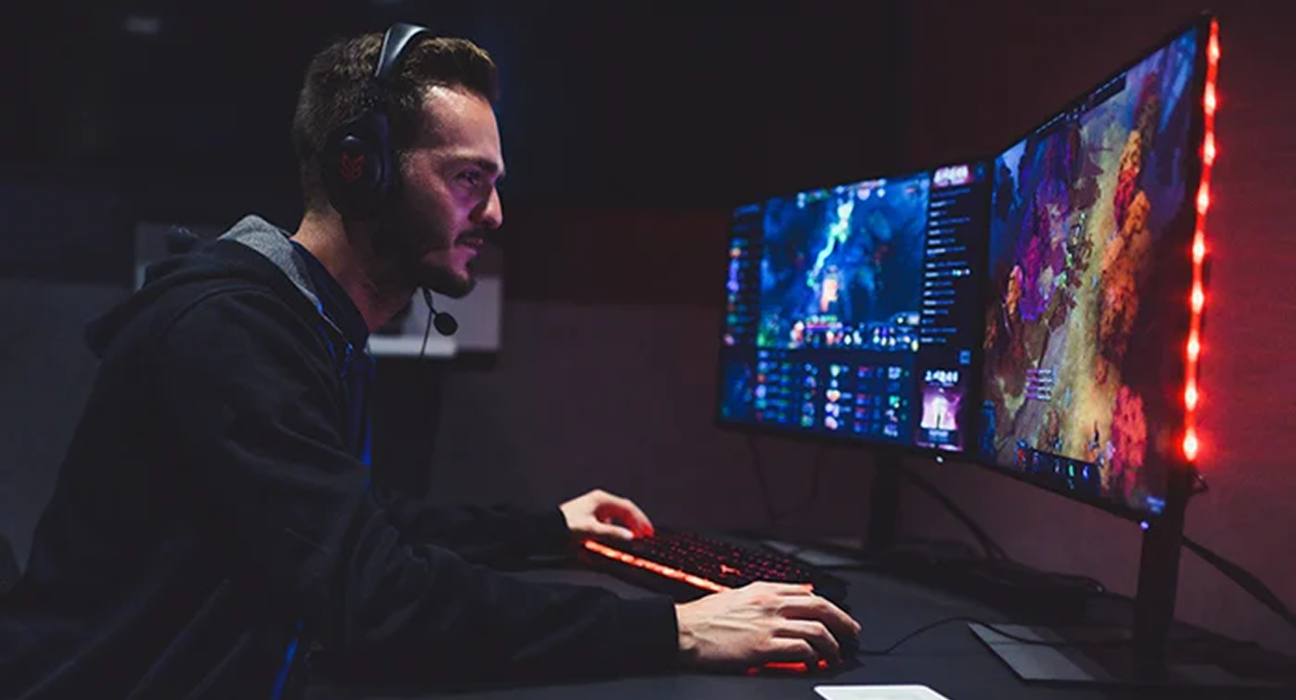
A good gaming experience is about more than having an expensive computer or the latest console.
Frame rate, input response, graphics settings, storage, internet connection, temperatures, background applications, and even your display settings can affect how a game feels.
The good news is that you do not always need to upgrade your hardware to improve performance.
A few changes to your settings, system, and gaming setup can sometimes make a noticeable difference.
Whether you are experiencing low FPS, stuttering, input delay, long loading times, or inconsistent online performance, this guide explains where to start.
1. Check Your Current Performance First
Before changing anything, understand what is actually causing the problem.
Different problems require different solutions.
For example:
- Low FPS may be a GPU or CPU limitation.
- Stuttering may be caused by memory, storage, drivers, overheating, or software.
- Input delay may involve display settings, peripherals, or network conditions.
- Online lag may be related to your internet connection or the game’s server.
- Long loading times may be related to storage performance.
If you change ten settings at once, you may never know which change actually helped.
Start by identifying the problem.
2. Understand FPS
FPS stands for frames per second.
It represents how many individual frames your system produces each second.
A higher and more consistent frame rate can make games appear smoother and controls feel more responsive.
However, the ideal FPS depends on the game, display, hardware, and type of gameplay.
For example, competitive games can benefit significantly from high and consistent frame rates, while slower single-player games may feel perfectly comfortable at lower frame rates.
Consistency is often more important than simply chasing the highest possible number.
3. Adjust Your Graphics Settings
Graphics settings are one of the easiest ways to change gaming performance.
If your game is struggling, start with settings that have a significant impact on performance.
Common settings include:
- Resolution
- Texture quality
- Shadow quality
- Reflections
- Ambient occlusion
- Anti-aliasing
- View distance
- Effects quality
- Volumetric effects
- Motion blur
You do not necessarily need to set everything to Low.
Instead, reduce the settings that have the biggest performance impact while keeping the visual quality you care about.
4. Use the Right Resolution
Resolution has a major effect on rendering workload.
For example, rendering a game at a higher resolution requires the graphics processor to process more pixels.
If your GPU is struggling, lowering resolution can improve FPS.
However, resolution also affects image sharpness.
A better approach may sometimes be to use:
- A lower native resolution
- An in-game resolution scaling option
- A supported upscaling technology
This can provide a balance between image quality and performance.
5. Use Upscaling Technologies When Available
Modern games may support technologies that render the game at a lower internal resolution and then reconstruct the image.
Depending on the hardware and game, examples can include:
- NVIDIA DLSS
- AMD FSR
- Intel XeSS
These technologies can increase performance while maintaining image quality that may look better than simply lowering the output resolution.
The exact result varies between games.
If your game supports an appropriate upscaling mode, it can be worth testing.
6. Reduce Shadow Quality
Shadows can consume significant rendering resources.
If you need additional performance, reducing shadow quality can be a useful compromise.
Try moving from:
Ultra → High
or
High → Medium
before making more aggressive changes elsewhere.
You may gain performance without dramatically changing the overall appearance of the game.
7. Check Your Display Refresh Rate
Your monitor or television may support a higher refresh rate than the operating system is currently using.
For example, a display might support:
- 60Hz
- 120Hz
- 144Hz
- 165Hz
- 240Hz
but your system may not automatically be configured to use the highest supported setting.
Check your operating system and display settings.
A higher refresh rate can make movement and interaction appear smoother when the game is capable of producing enough frames.
8. Use Variable Refresh Rate When Supported
Technologies such as:
- NVIDIA G-SYNC
- AMD FreeSync
- VESA Adaptive-Sync
can help synchronize the display’s refresh behavior with the frame rate produced by the system.
This can reduce visible tearing and make variable frame rates feel smoother.
Your monitor, GPU, and game settings all need to be compatible with the chosen technology.
9. Keep Your Graphics Drivers Updated
Graphics drivers can affect game compatibility and performance.
GPU manufacturers regularly release driver updates that may include:
- Game optimizations
- Bug fixes
- Security improvements
- Compatibility updates
- New feature support
If you are experiencing a problem with a recently released game, checking for a current graphics driver can be a sensible troubleshooting step.
At the same time, constantly updating drivers without a reason is not necessary for everyone.
10. Close Unnecessary Background Applications
Background applications consume system resources.
These may include:
- Web browsers
- Video editing software
- File synchronization programs
- Launchers
- Messaging applications
- Recording software
- Unnecessary utilities
If your system has limited RAM or CPU resources, closing unnecessary applications can free resources for the game.
Do not close processes you do not recognize.
Focus on applications you intentionally opened and do not need while gaming.
11. Check Your RAM Usage
RAM is your system’s short-term working memory.
Games can use significant amounts of RAM, particularly modern open-world games and applications running alongside them.
If your system is frequently running out of available memory, you may experience:
- Stuttering
- Slowdowns
- Longer loading
- Application switching problems
Checking memory usage while gaming can help determine whether RAM is contributing to the problem.
12. Keep Enough Free Storage
Storage can affect the overall experience of a gaming system.
Modern games can require significant amounts of storage space.
Avoid filling a drive completely.
Keeping reasonable free space can make storage management easier and provide room for:
- Game updates
- Temporary files
- New games
- Operating system updates
For games installed on an SSD, loading times may also be significantly better than on older mechanical hard drives.
13. Consider an SSD
If your gaming system still relies heavily on a traditional hard disk drive, moving games or the operating system to an SSD can improve loading performance.
An SSD can reduce:
- Game loading times
- System boot times
- Application loading times
- File access delays
An SSD does not automatically increase FPS in every game.
Its biggest advantage is usually loading and responsiveness rather than raw rendering performance.
14. Watch Your Temperatures
Heat can affect gaming performance.
When a CPU or GPU becomes too hot, the system may reduce operating speeds to control temperature.
This can lead to:
- Lower performance
- FPS drops
- Stuttering
- Fan noise
- System instability
Monitor temperatures during demanding games.
If temperatures are unusually high, possible causes include:
- Dust buildup
- Poor airflow
- Blocked vents
- High ambient temperature
- Aging thermal interface material
- Inadequate cooling
Do not immediately change advanced hardware settings without understanding the risks.
15. Improve Airflow
Desktop PCs need adequate airflow.
Make sure:
- Air vents are not blocked
- Dust is removed periodically
- Fans are working properly
- The PC has enough space around it
- Cables are not unnecessarily obstructing airflow
Laptops also need unobstructed ventilation.
Avoid using a laptop on soft surfaces such as beds or thick blankets when gaming because they can block ventilation openings.
16. Use Game Mode and Performance Settings
Modern operating systems and gaming platforms may offer settings designed to prioritize gaming.
Depending on your system, these can include:
- Game Mode
- Performance modes
- GPU scheduling options
- Power settings
- Gaming-specific optimizations
These settings vary by operating system and hardware.
If you are troubleshooting performance, review the gaming and power settings available on your device.
17. Choose the Right Power Mode
On laptops especially, power-saving modes can limit performance.
If you are gaming while connected to a power adapter, check whether the system is using an appropriate performance profile.
A laptop operating aggressively in battery-saving mode may not provide the same performance as when connected to power.
Remember that higher performance generally means higher power consumption and potentially more heat.
18. Reduce Input Lag
Input lag refers to the delay between an action you make and the corresponding response appearing on screen.
Several factors can contribute to perceived input delay.
Consider:
- Display refresh rate
- Game settings
- V-Sync configuration
- Controller or mouse connection
- Wireless interference
- Display processing
- Network latency in online games
Competitive players often prioritize responsiveness over visual effects.
If a game offers a performance-oriented mode, testing it may be worthwhile.
19. Choose the Right Mouse Settings
For PC gaming, your mouse can have a meaningful effect on control.
Consider:
- Mouse sensitivity
- DPI
- Polling rate
- In-game sensitivity
- Acceleration settings
There is no universally correct DPI or sensitivity.
The best setting is one that provides reliable control for the game you play.
Avoid changing sensitivity constantly.
Give yourself time to adapt to a configuration.
20. Use a Wired Connection for Competitive Online Gaming
Wi-Fi can work very well for gaming, but a wired Ethernet connection can provide a more consistent connection in many environments.
If you experience:
- Packet loss
- Random disconnects
- High ping
- Sudden latency spikes
a wired connection may be worth testing.
However, internet speed is not the only factor affecting online gaming.
The quality of the connection and distance to the game server also matter.
21. Understand Ping and Latency
Ping measures the time required for data to travel between your device and a server.
Lower latency generally means faster communication.
High ping can cause actions to feel delayed in online games.
Factors affecting latency include:
- Physical distance from the server
- Internet routing
- Network congestion
- Wi-Fi conditions
- ISP performance
- Game server conditions
Upgrading to a faster internet plan does not automatically eliminate high ping.
The server’s location and network route can be more important.
22. Stop Downloads While Gaming
Large downloads can consume network bandwidth.
If a game, operating system, or another application is downloading a large file while you are playing online, your connection may become less consistent.
Before starting a competitive session, check whether:
- Games are updating
- Cloud storage is synchronizing
- Another device is downloading large files
- Streaming is consuming significant bandwidth
Managing network activity can improve consistency.
23. Keep Your Game Updated
Game developers regularly release updates.
Updates may include:
- Performance improvements
- Bug fixes
- Driver compatibility
- Stability improvements
- New graphics features
If you are experiencing a known issue, checking whether a newer game version is available can be useful.
24. Use the Right Graphics Preset
Most games provide presets such as:
- Low
- Medium
- High
- Ultra
Do not assume that Ultra is always the best setting.
The difference between High and Ultra may be difficult to notice during normal gameplay while requiring substantially more GPU resources.
For many players, High with a stable frame rate can provide a better experience than Ultra with frequent FPS drops.
25. Limit Unnecessary Visual Effects
Some effects are visually impressive but may not significantly improve gameplay.
Depending on the game, consider reducing:
- Motion blur
- Depth of field
- Film grain
- Chromatic aberration
- Excessive particle effects
These settings vary in performance impact.
Some players also prefer disabling them because they make the image clearer.
26. Don’t Use Performance Tweaks You Don’t Understand
The internet contains many gaming optimization guides.
Some recommend changing:
- Registry settings
- BIOS settings
- GPU voltage
- CPU settings
- System services
- Advanced configuration files
Some tweaks may be legitimate, but others can create instability or provide little benefit.
If you do not understand what a setting does, research it before changing it.
Simple optimization is usually a better starting point.
27. Consider Hardware Upgrades Only After Troubleshooting
If your system still cannot provide the performance you want, hardware may eventually become the limiting factor.
Possible upgrades include:
- GPU
- CPU
- RAM
- SSD
- Cooling
- Monitor
But identify the bottleneck first.
Upgrading the wrong component can be expensive without solving the actual problem.
For example, if your GPU is consistently at maximum utilization during a game, upgrading RAM may not dramatically increase FPS.
How to Identify Your Gaming Bottleneck
A useful approach is to monitor system performance while playing.
Look at:
- GPU utilization
- CPU utilization
- RAM usage
- VRAM usage
- GPU temperature
- CPU temperature
- FPS
- Frame-time consistency
The component that consistently reaches its limit can provide a clue about where the problem is.
This is more useful than upgrading components based purely on assumptions.
Recommended Optimization Order
If your game is performing poorly, try these steps in order:
| Step | Action |
|---|---|
| 1 | Check FPS and system usage |
| 2 | Update the game |
| 3 | Update graphics drivers |
| 4 | Close unnecessary applications |
| 5 | Check temperatures |
| 6 | Reduce demanding graphics settings |
| 7 | Adjust resolution or upscaling |
| 8 | Check storage space |
| 9 | Check network performance |
| 10 | Consider hardware upgrades |
This approach helps you solve the problem systematically instead of changing everything at once.
For Competitive Gaming
Competitive games often prioritize responsiveness over visual quality.
You may want to prioritize:
- Stable FPS
- High refresh rate
- Low input delay
- Consistent frame times
- Reliable internet
- Comfortable mouse sensitivity
- Clear visibility
A competitive player may therefore prefer a lower graphics preset that maintains stable performance.
The highest visual settings are not necessarily the best settings for competitive play.
For Single-Player Games
Single-player games give you more flexibility.
You may choose to prioritize:
- Visual quality
- Resolution
- High-quality textures
- Lighting
- Shadows
- Environmental details
If your FPS remains stable, higher graphics settings may be worth using.
There is no universal “best” configuration.
The Bottom Line
Improving gaming performance does not always require buying new hardware.
Start by understanding the problem.
Check your FPS, system usage, temperatures, storage, network connection, and graphics settings.
Then make changes gradually.
The biggest improvements often come from relatively simple actions:
Keep drivers and games updated.
Reduce demanding graphics settings.
Use appropriate resolution and upscaling.
Keep your system cool.
Close unnecessary background applications.
Use a reliable network connection for online gaming.
Upgrade hardware only when you have identified the actual bottleneck.
Most importantly, optimize for the type of gaming you actually do.
A competitive player may value responsiveness and stable FPS, while a single-player gamer may prefer higher visual quality.
The best gaming setup is not necessarily the most expensive one.
It is the one that delivers stable performance, responsive controls, and a smooth experience for the games you actually play.